Skip to content
CandleQuantum

CQ Note app iconCandle Quantum NoteCQ Note · by Candle Quantum

Think beyond
the page.

Candle Quantum Note — CQ Note for short — is a handwriting-first notebook for iPad, iPhone, Mac and Apple Vision Pro. Write with over sixty pens, drop in graphs that move, tie your notes to a video, write on your PDFs, and cover an answer to test yourself. All in one calm, private place.

Write

Ink that feels like paper,
and behaves like nothing else.

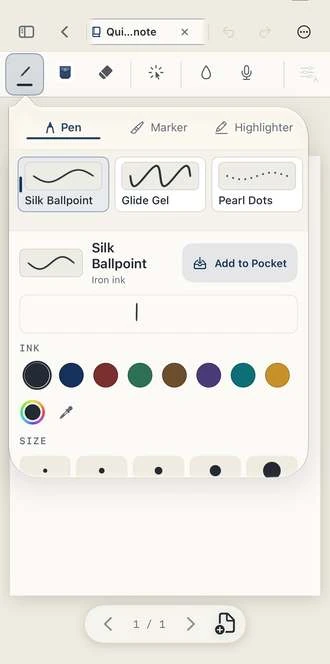
Every line you write stays a line: sharp at any zoom, and yours to move, recolour, resize or rub out. Choose from over sixty pens, markers, highlighters, pencils and brushes, each drawn to look and write differently.

  • Pens, markers and highlighters, plus pencil, brush, charcoal and pastel
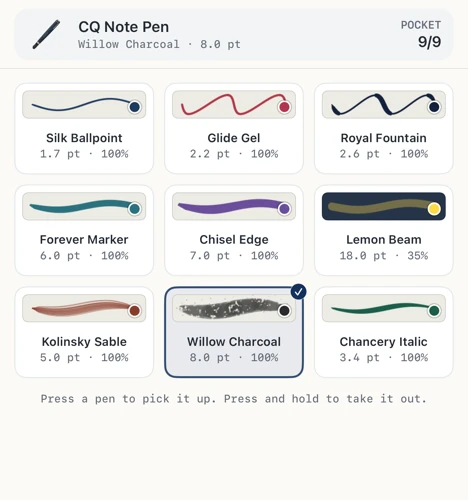
  • Pocket keeps your favourite pens one tap away
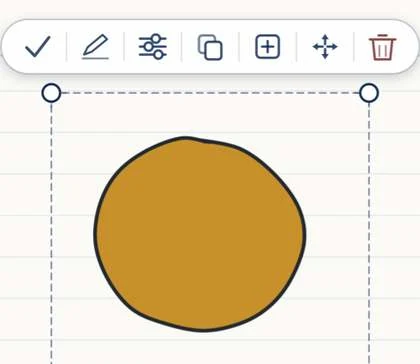
  • Hold a line still and it straightens; circles, boxes and arrows come out neat
  • Fill a shape with colour, up to its lines
  • Moving mark: record ink that draws itself again

Write or draw here

A small demonstration of the idea, drawn in your browser. In the app the ink engine is far richer, with pressure, tilt and over sixty pens.

The toolbar

Tool by tool, left to right.

These are the real buttons. Tap one to see what it does, and the real screen it opens.

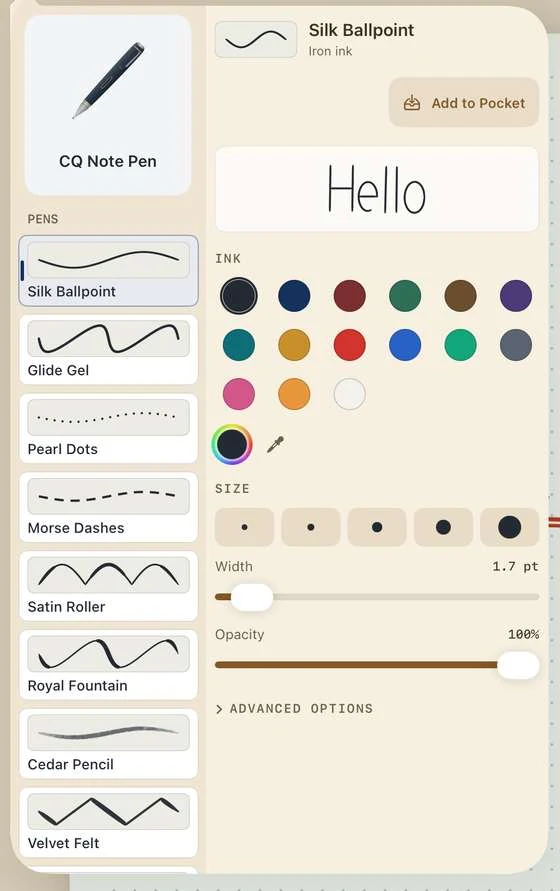
Pen

Write and draw. Over sixty nibs.

The pen shelf of CQ Note

Maths and science

A notebook that
does the maths with you.

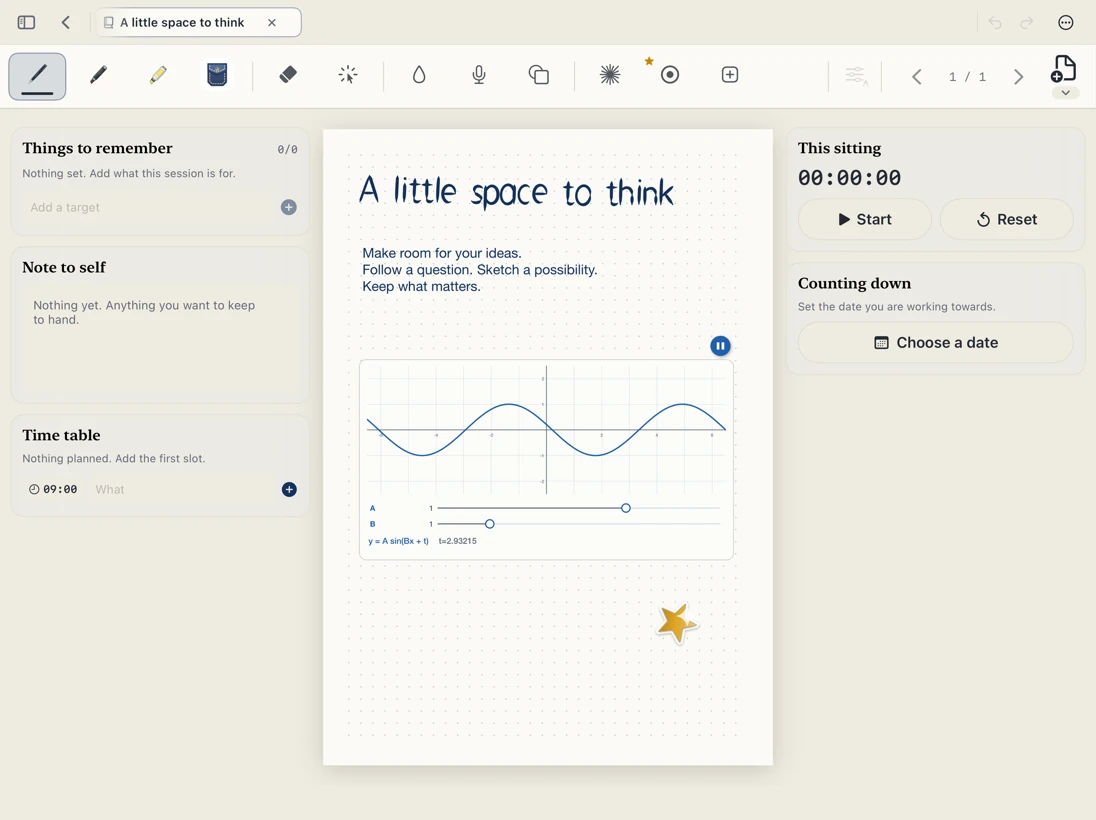
Type an equation and the graph lives on your page, with sliders you can move. Run a simulation beside your working. Reach for a ruler, a protractor or a calculator without leaving the page.

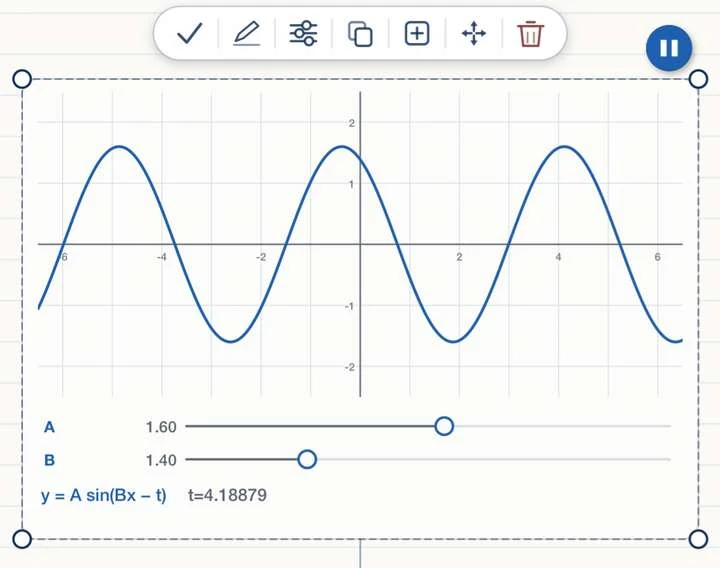
y = A sin(Bx + t)

Drag the sliders. In CQ Note, every graph is a live object on your page like this one, and you can write beside it.

A live graph on a CQ Note page, with sliders
A live graph, with its own sliders.
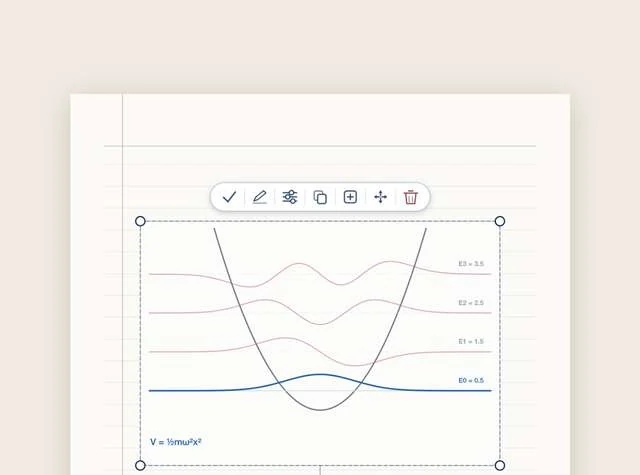
A quantum harmonic oscillator graph in CQ Note
Quantum functions: watch a harmonic oscillator.
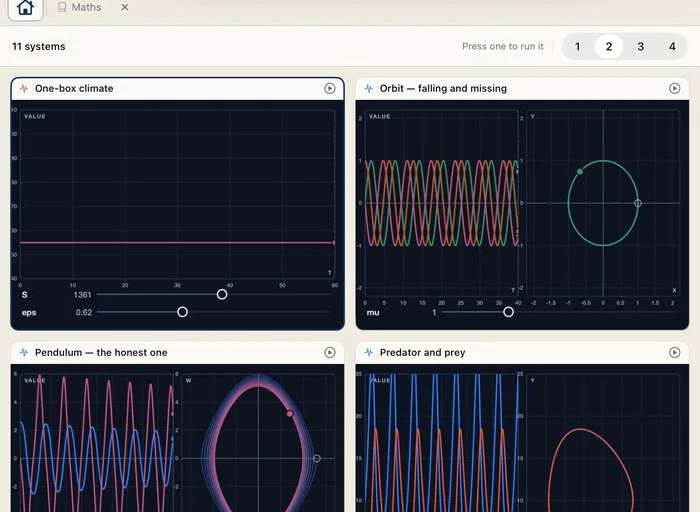
Four simulations running side by side in CQ Note

A lab for things that change

Predator and prey, the Lorenz attractor, a damped spring, RC charging, a pendulum, Van der Pol and projectile with drag. Press one to run it, then write what you notice beside it.

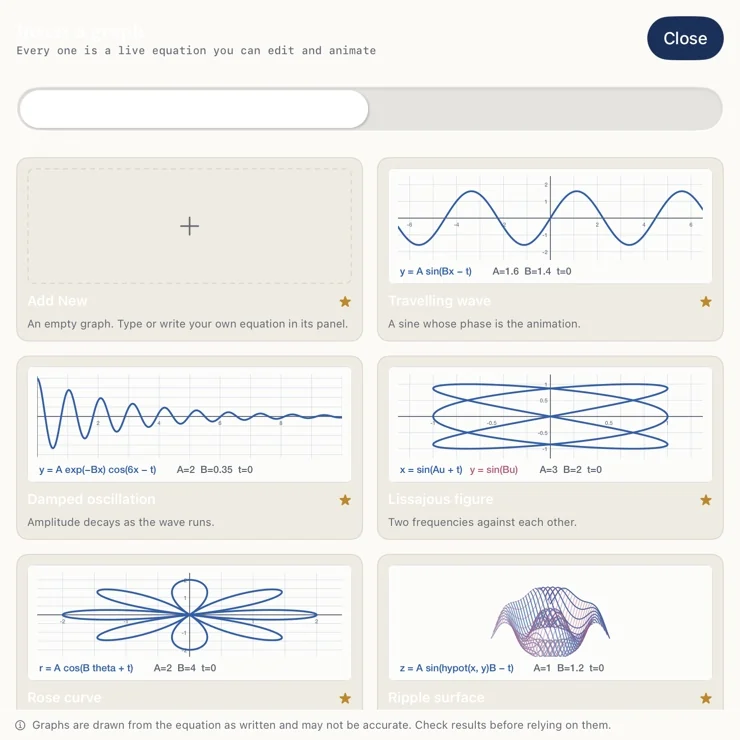
A gallery of equations that can be edited and animated

Every graph is an equation

Travelling waves, damped oscillation, Lissajous figures, a rose, a surface. Edit the equation and the picture follows.
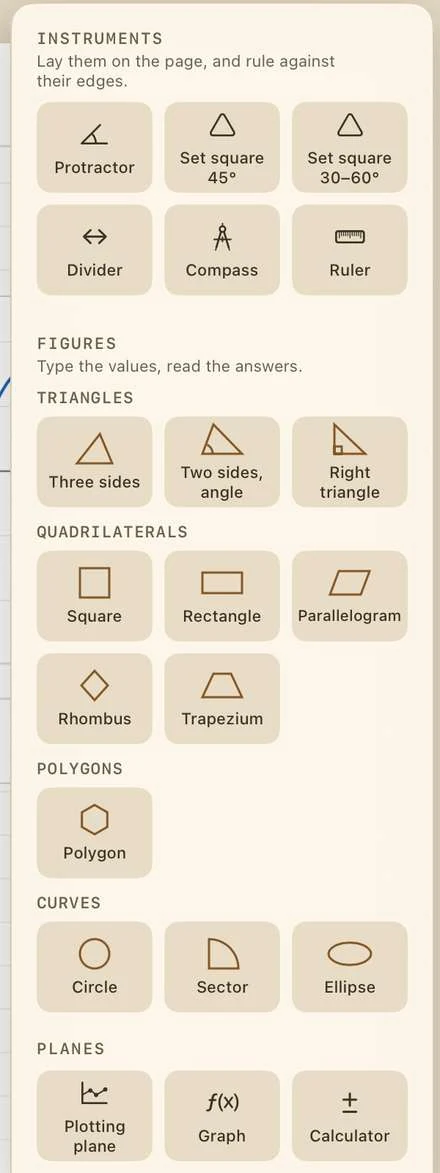
The Maths set: protractor, set squares, compass, ruler and more

A Maths set on the page

A ruler to turn, a protractor, set squares, a compass, figures and a plotting plane.
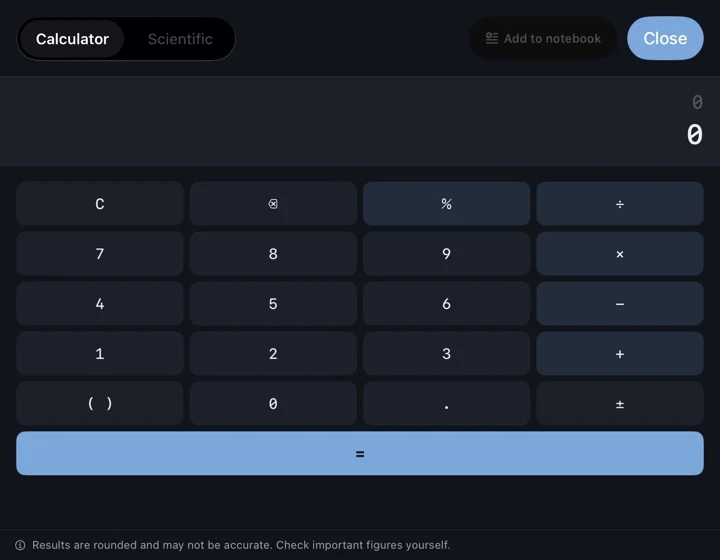
The calculator and scientific calculator in CQ Note

A calculator when you need one

Standard and scientific, and your results can go straight into the notebook.

PDFs and paper

Bring everything in.
Write on all of it.

Import a PDF and write right on its pages. Scan a sheet of paper. Clip just the part you need. Keep a question paper beside your notes, with room for your working.
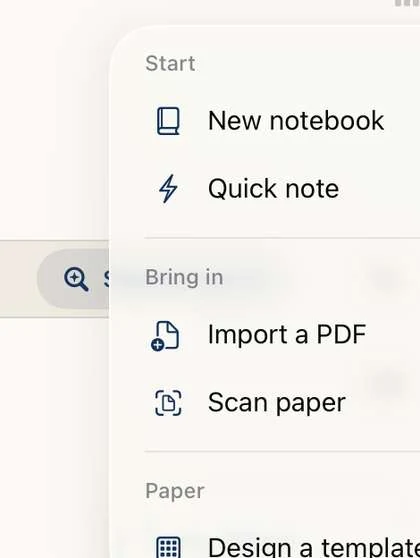
The Plus menu offering New notebook, Quick note, Import a PDF and Scan paper

Import a PDF, scan paper

Start a notebook from a PDF, or point the camera at paper. Both open ready to write on.
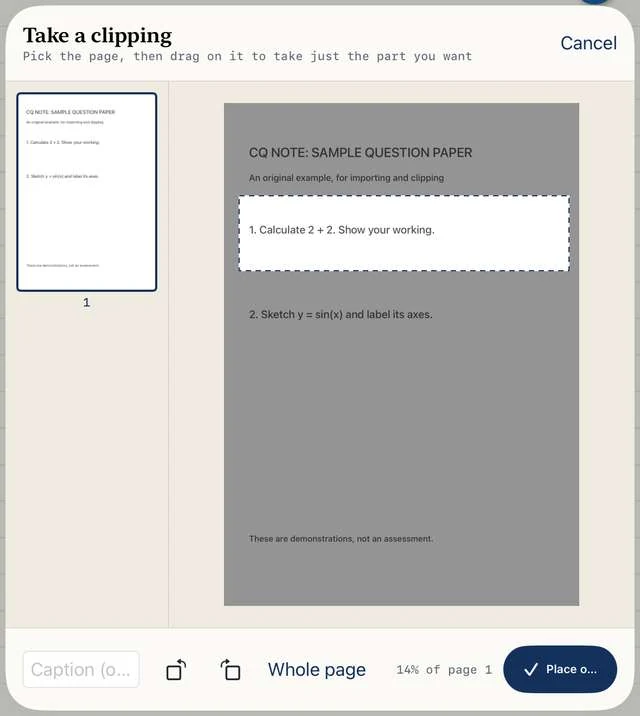
Taking a clipping: drag a box over part of a PDF page

Clip just the part you want

Pick a page, drag a box, and place only that part on your own page.
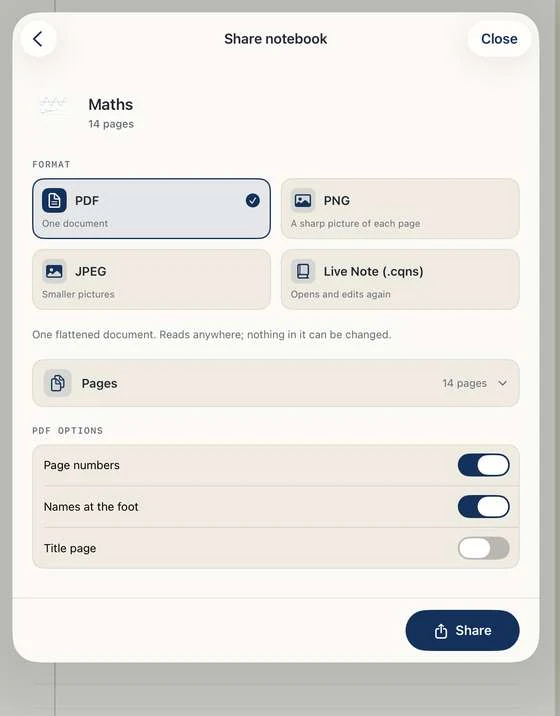
Sharing a notebook as PDF, PNG, JPEG or a Live Note file

Share it your way

Export as PDF, PNG or JPEG, or as an editable Live Note (.cqns) that opens in CQ Note.

Video on the page

Watch it. Write it.
Tap a line and the film plays it.

Put a video on any page, beside the notes that explain it. Then tie a line of your own writing to the exact seconds it is about. That is a video cue: tap your words later, and the film plays only that part.

0:00 / 0:24

Find itInsertVideo with cueschoose a file

my notes, in boxes

Press a boxed line: the film plays only its seconds.

A small web illustration of the idea, built around a real 24-second recording of CQ Note. In the app you make the boxes yourself, around your own writing.

  1. 1

    Flag where it starts

    Play the film and stop where the passage begins. Press the flag, then Start. A red mark sits on the timeline.

  2. 2

    Flag where it ends

    Play on to the end of the passage. Press the flag, then End. This mark is green.

  3. 3

    Link your own words

    Select your writing, press the flag, then Link Points to Video. Your writing gets a box and the seconds.

The flag button under the video offers Start, End, Link Points to Video and Undo flag
The flag button, under the video. Marked the wrong place? Undo flag takes back the last flag.
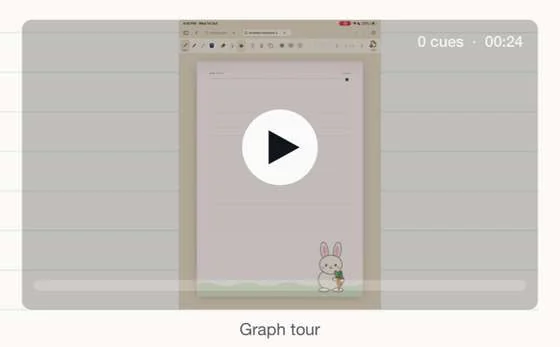
A video on a CQ Note page, with its play button

Play on the page

It plays right where it sits, on your page, with a play bar underneath.
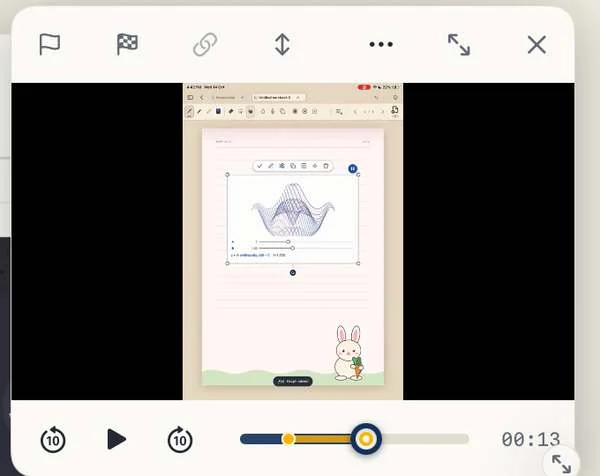
The floating video player with the flag, link and timeline controls

Float over the page

A small player you can drag anywhere, so the film stays beside what you are writing.
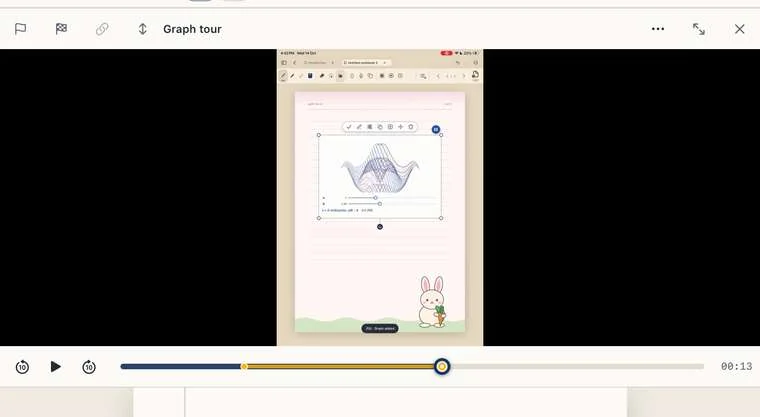
Theater mode: the video on top and the page below it

Theater

The video on top and your page below, so you can write as you watch.

Adding video cues is part of Premium, free for your first three months. Ordinary videos on a page, and any cues you have already made, keep working on the Free plan.

Study

Made for the way
you actually learn.

Cover an answer and test yourself. Mark what matters and watch it gather into a revision sheet. Plan the route, count down to the exam.
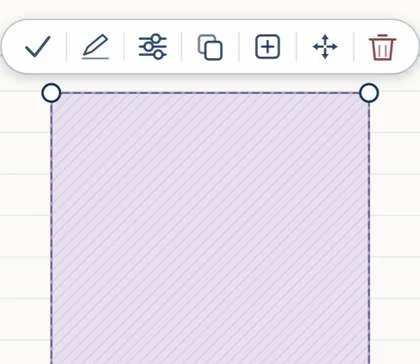
A recall box covering an answer The same box uncovered, showing the answer

Real captures of the same page. In the app, tap the box to uncover it, and cover it again to try once more.

Recall boxes

Draw a box over an answer you wrote. It covers the answer, so you can quiz yourself from your own notes, and it opens with a tap. Page links take you from a question to its answer in one move.

Important points

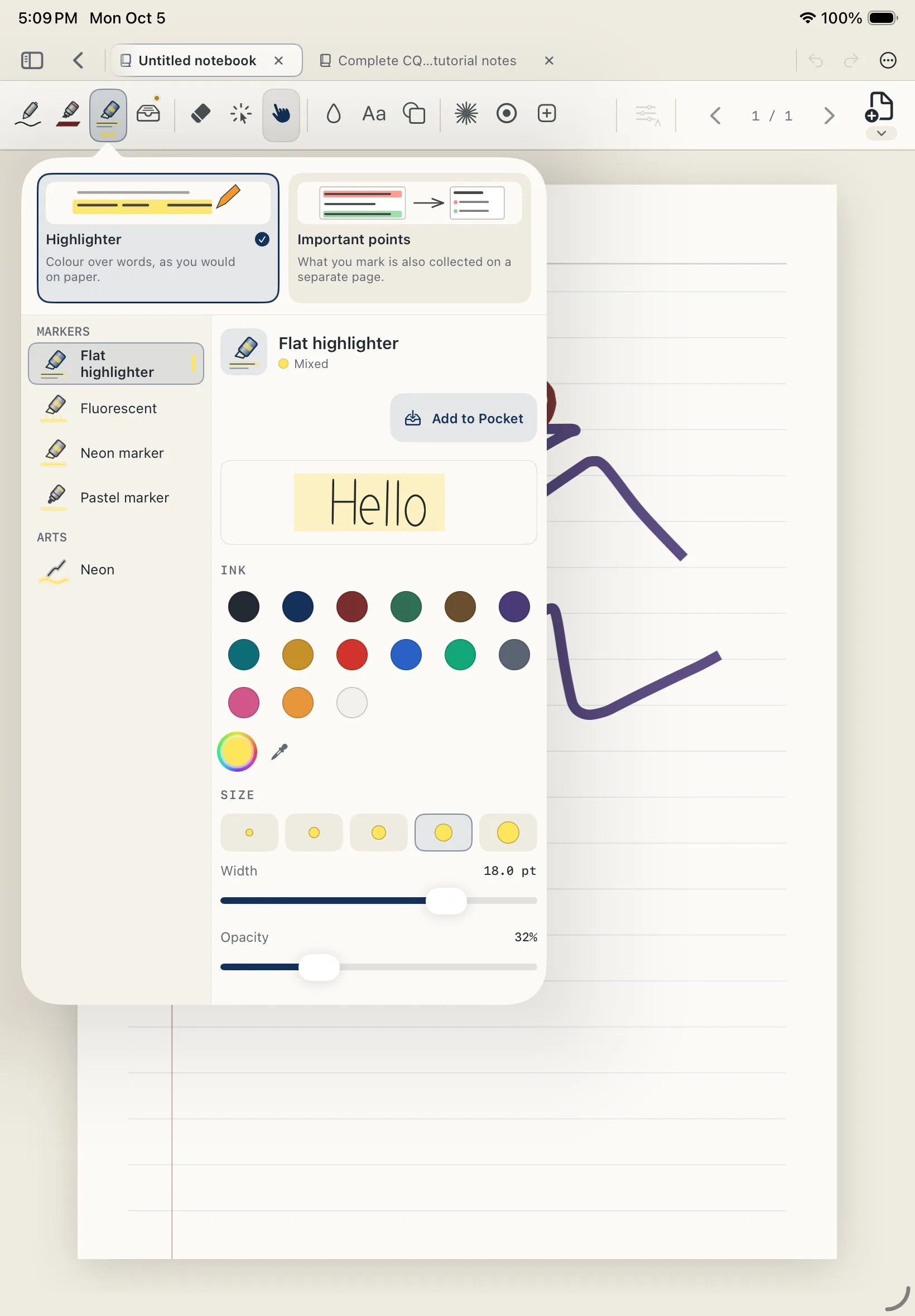
Switch the highlighter to Important points and mark as you read, in five colours that mean something. Everything you mark is gathered on a separate page, sorted by colour, ready to revise.
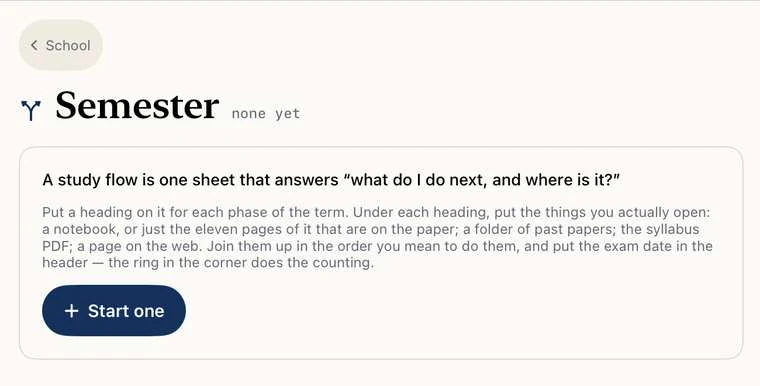
  • Study flows: one sheet that shows what to do next, and where it is
  • An exam countdown that sits in the margin of every page
  • Voice memos that light up what you wrote as they play
  • Two maths games to warm up with: Number Wings and Quantum Cannon
The highlighter panel on iPad with the Important points mode
A study flow: Learn it, Practise it, Test yourself, The exam
Study flowsPlan the route from first read to the exam.
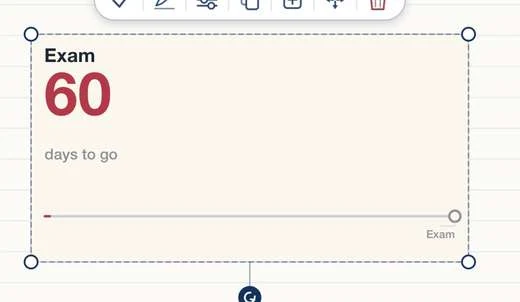
An exam countdown: 60 days to go
Exam countdownSixty days to go, on the page.
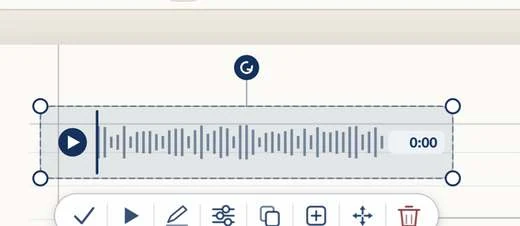
A voice memo recorded on a page
Voice memosRecord while you write; transcribed on your device.
A video on a CQ Note page, ready to play
Video cuesTie a line of your notes to the seconds that explain it.

Who it is for

The same notebook, and a different set of tools for each of us.

Play

Two maths games,
inside your notebook.

Practice that does not feel like practice. Fly a bird through the right answer, or fire a cannon at sums before they land. Both open from the side bar on Home, with no account and no ads.
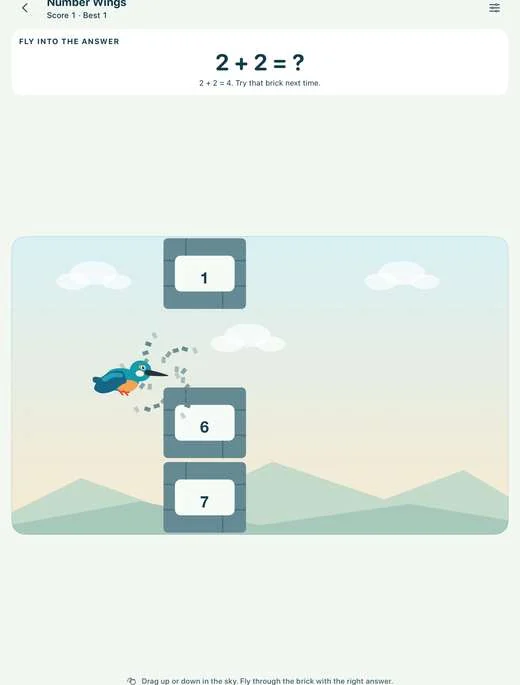
A flight in the real CQ Note game, with its bird, question and answer wall.
Real Number Wings gameplay from CQ Note. Open the image to see it at full size.

Find it: Home › Side bar › Number Wings

Fly through the right answer.

A bird, a wall of numbered bricks and a question at the top. Steer up or down and fly through the brick that holds the answer. Wrong answers are explained, so a slip teaches you something.
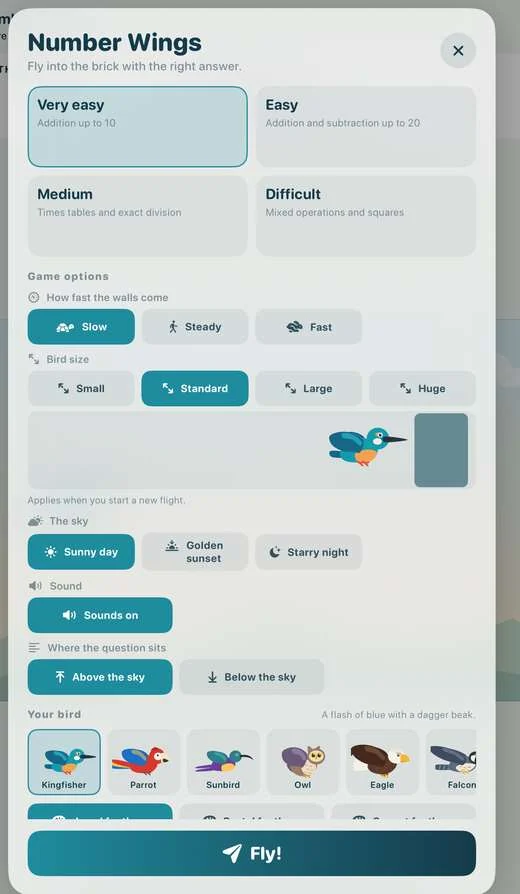
  • Four levels: addition up to 10, then up to 20 with taking away, then times tables and exact division, then mixed operations and squares
  • Every fifth wall is a magic question: answer it for a shield, slower walls or double points
  • Twelve birds to choose from, an eagle, an owl, a toucan and even a penguin with a jet engine
  • Prefer not to drag? Four answer buttons do the same
The real Number Wings start screen and game options

The real Number Wings start screen.

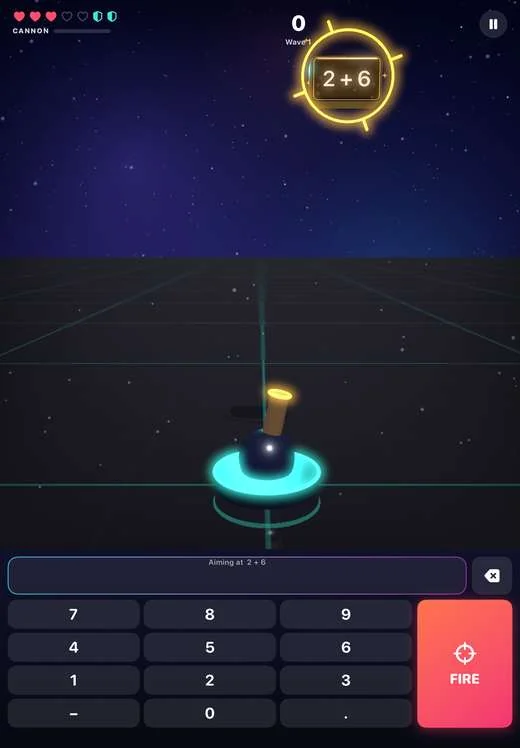
The real CQ Note game, with its 3D cannon, falling sums and answer keypad.
Real Quantum Cannon gameplay from CQ Note. Open the image to see it at full size.

Find it: Home › Side bar › Maths cannon

Answer the sums before they land.

Sums fall from the sky as blocks. Type the answer on the keypad and press FIRE: the bolt carries your answer to the block the cannon is aimed at. When the game ends, a report shows what you missed and what the answers were.
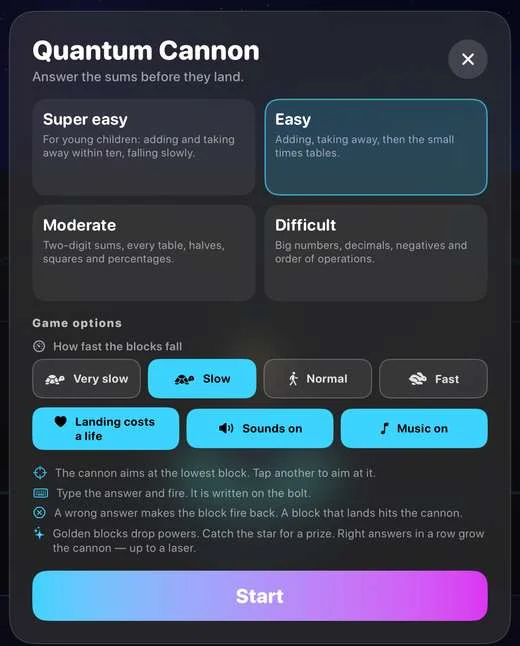
  • Four levels, from adding and taking away within ten for young children, to big numbers, decimals, negatives and order of operations
  • A right answer bursts the block, and a golden block drops a power. A wrong answer makes the block fire back
  • Right answers in a row grow the cannon: Cannon, Special, Super, then a Laser cannon
  • Sound and music are switches you can turn off in a quiet room
The real Quantum Cannon start screen and game options

The real Quantum Cannon start screen.

On the Free plan you get five rounds of each game every day. Premium has no limit on rounds, and in your first three months everything is open.

Organise and find

A library that
can read your handwriting.

Shelves, folders, tags and favourites keep every notebook in order. Search finds your handwriting, and goes further: pictures, voice memos, stamps, graphs and the things you still have to do.
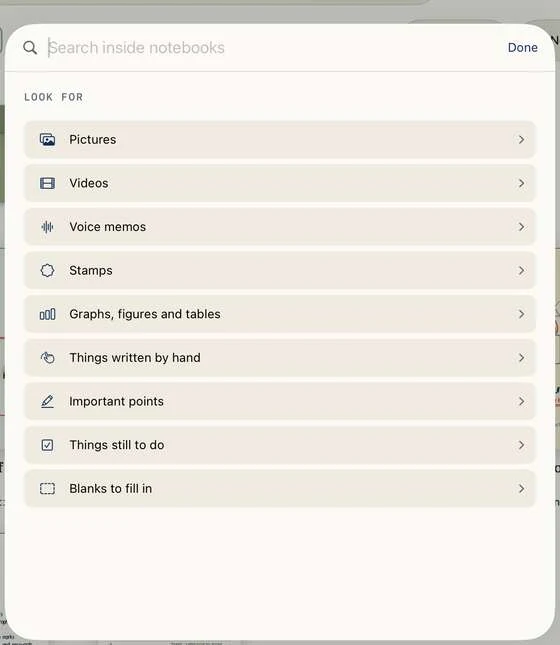
Special search: look for pictures, videos, voice memos, stamps, graphs, handwriting and more

Special search

Look for things inside your work, not just cover names: pictures, videos, voice memos, stamps, tables, important points, blanks to fill in.
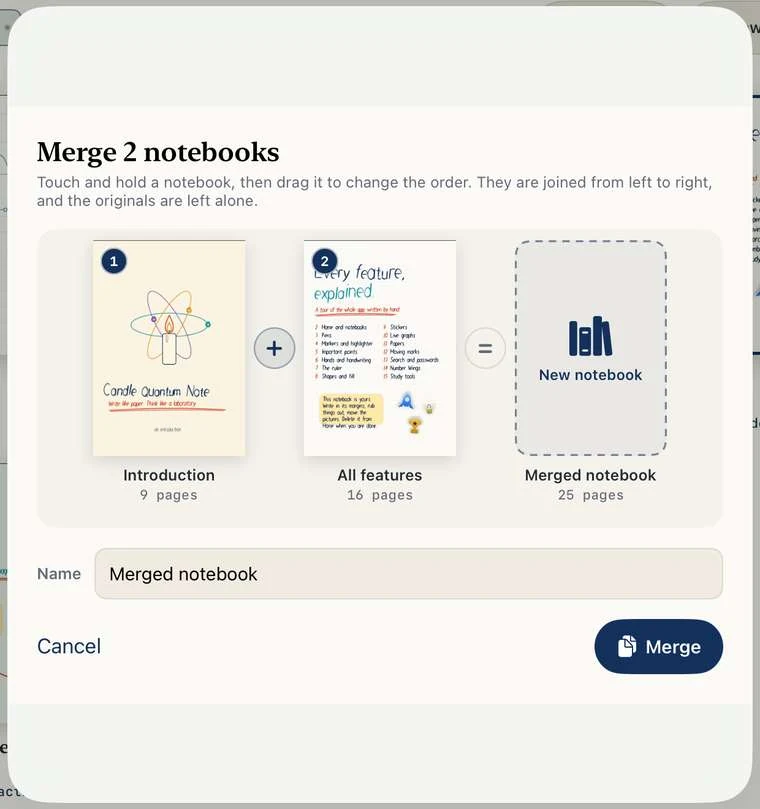
Merging two notebooks into one

Merge, split, connect

Join notebooks, cut one into parts, or tie related books together without merging their pages.
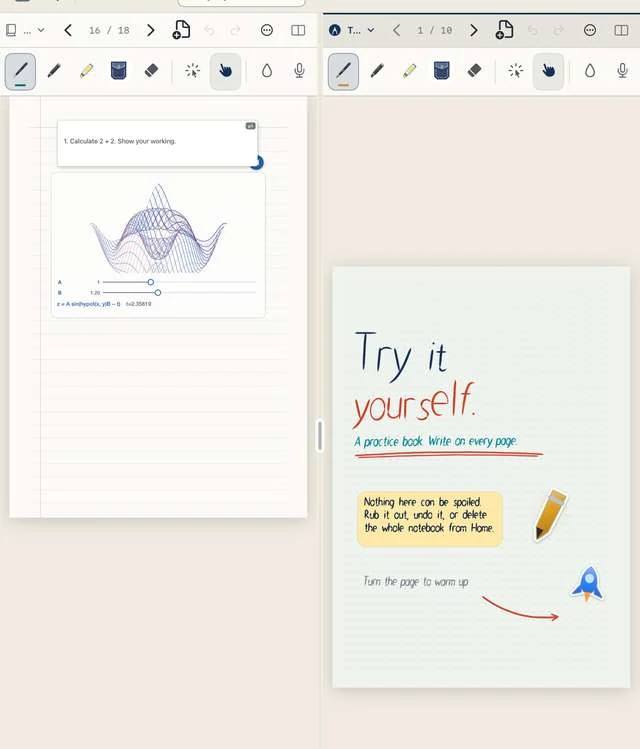
Two notebooks side by side in split screen

Tabs and split screen

Up to eight notebooks in tabs per window, or two side by side. Put one beside the other and copy between them.
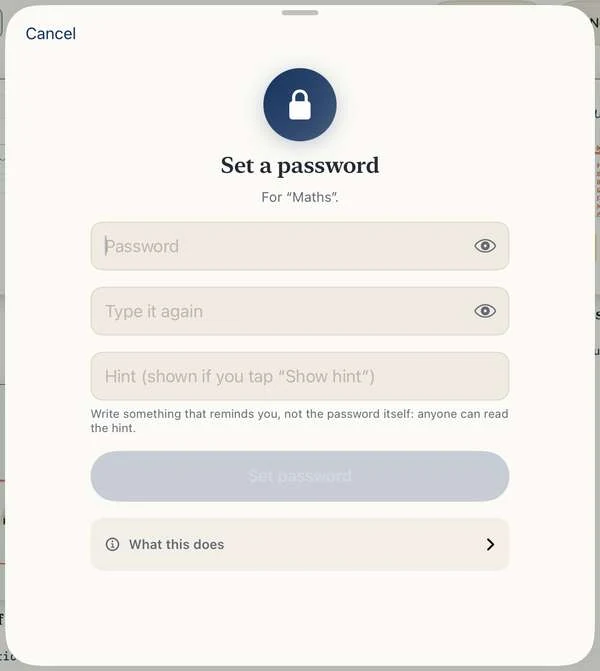
Setting a password on a notebook

Passwords you can trust to keep the curious out

Lock a notebook or folder and open it with Face ID, Touch ID or Optic ID. It is an app lock, not encryption, and it says so.

Everything in one place

All you expect from a notebook.
And a good deal you do not.

The everyday tools are here, and they are free for good. Then come the special ones, the tools that make CQ Note more than a place to write. Look for the one you need.

Write and draw

7
  • 27 everyday writing tools, and every highlighter inkFree
  • Over sixty pens, markers, brushes, pencils and pastelsPremium
  • Pocket: your favourite pens, one tap awayFree
  • Eraser, undo and redo, select, copy and pasteFree
  • Shapes that straighten themselves, and fill with colourFree
  • A laser pointer that leaves no markFree
  • Moving marks: ink that draws itself againPremium

Pages and paper

7
  • Unlimited pages in a notebookFree
  • All the Basics paper, with colour and doodle sheetsFree
  • Every sheet, and paper you design yourselfPremium
  • PDF import, writing on a PDF, and clipping a part of a pageFree
  • A desk of your own photograph, and cards in the marginPremium
  • Page links, Page from a book, Grow as I workPremium
  • Split screen, and windows of their ownPremium

Add anything

8
  • Text, photos and the cameraFree
  • Stickers, notes, pins, steps and today’s dateFree
  • Voice memos with transcripts: 30 minutes in each notebook, no limit with PremiumFree to start
  • Videos on the page, played three waysFree
  • Video cues: tie your writing to the exact secondsPremium
  • Say it, write it: dictate straight onto the pagePremium
  • Scan paper with the cameraPremium
  • Every sticky note, office stamp and handwritten stampPremium

Maths and science

6
  • The Maths set: ruler, protractor, set squares and compassFree
  • Live graphs from an equation, with slidersPremium
  • Quantum functions you can watchPremium
  • Calculators, standard and scientificPremium
  • A simulator for things that changePremium
  • Planners, tables, charts and diagramsPremium

Study

4
  • Recall boxes that cover an answer and quiz youPremium
  • Important points, gathered into a revision sheetPremium
  • Study flows: the route from first read to the examPremium
  • Practice, for going back over what you wrotePremium

Play

2
  • Number Wings: fly a bird through the right answer. Five rounds a day free, no limit with PremiumFree to start
  • Quantum Cannon: fire the answer at falling sums. Five rounds a day free, no limit with PremiumFree to start

Organise and find

7
  • Eight notebooks, and no limit with PremiumFree to start
  • Shelves, folders, tags and favouritesFree
  • Up to eight notebooks open as tabs in a windowFree
  • Find inside a notebook, and search by nameFree
  • Special search: handwriting, pictures, voice memos, stamps and graphs across every notebookPremium
  • Merge, split and connect notebooksPremium
  • Passwords on notebooks and foldersPremium

Share and stay safe

6
  • Export as PDF, PNG or JPEG, or as an editable Live NoteFree
  • Exports without the CQ Note markPremium
  • A daily backup to your own iCloud Drive, if you want oneFree
  • No account, no ads, no analytics, and it works offlineFree
  • Seven languages, with appearance and accessibility choicesFree
  • Two guide notebooks and an offline Master Guide, built inFree

“Premium” tools are free for your first three months. After that the Free plan keeps going, with the Free tools above, and Premium adds the rest. Compare the plans.

Two notebooks come with the app

Read them here first.
Then find them on your shelf.

The first time you open CQ Note, its shelf already holds two notebooks, written in handwriting on real pages, with the real screens and the arrows drawn on them. Page through them below, or download each one as a PDF to read anywhere.
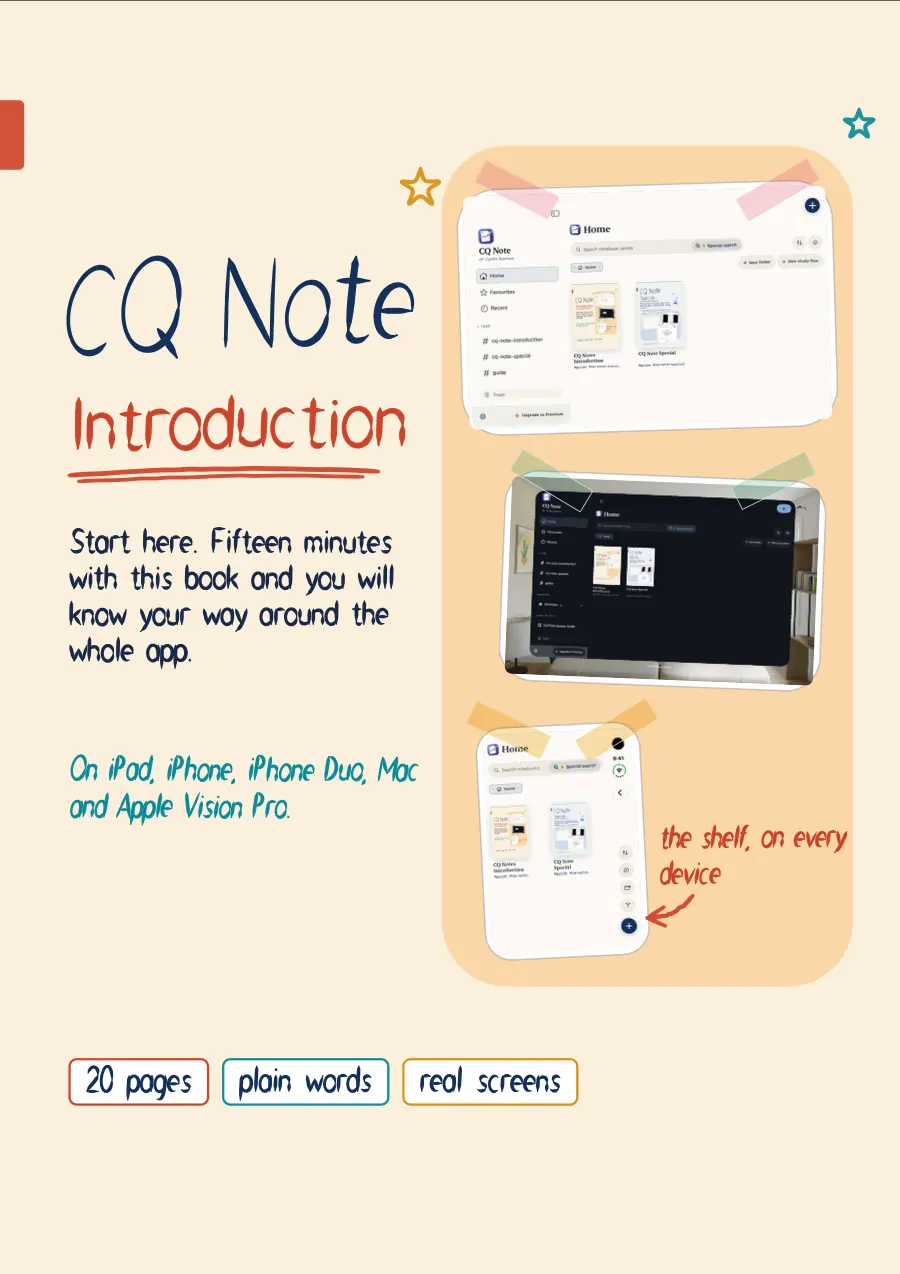
The cover of CQ Note Introduction

Start here

CQ Note Introduction

The basics, in plain words, with the real screens. Fifteen minutes with it and you will know your way around the whole app.
20 pagesIn EnglishPDF, 2.8 MB

Download PDF
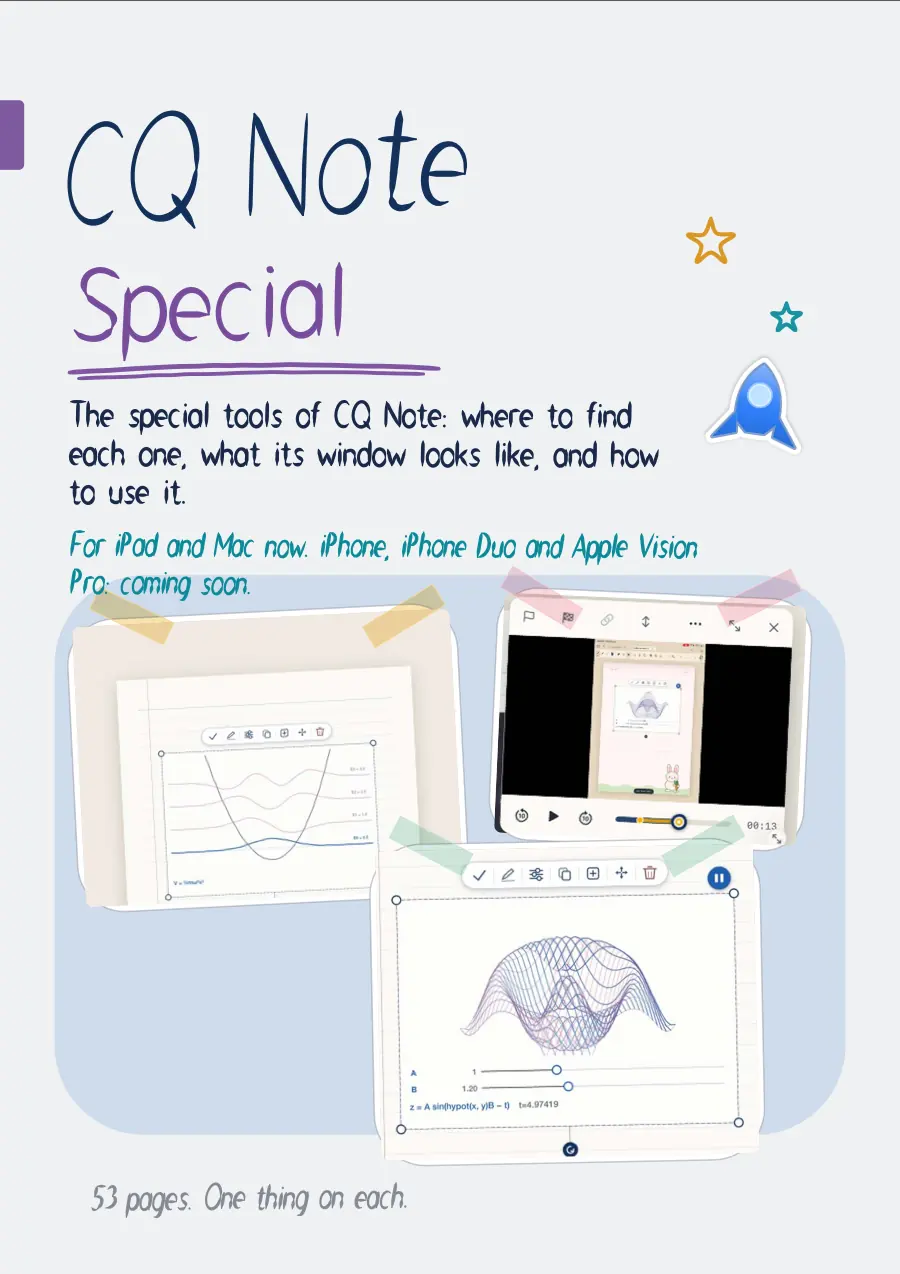
The cover of CQ Note Special

The special tools

CQ Note Special

The special tools of CQ Note, and where to find them. One page each, with the real window and what to press.

53 pagesIn EnglishPDF, 7.5 MB

Download PDF

The two notebooks are written in English. On your shelf the first is titled “CQ Notes Introduction” and the second “CQ Note Special”. They count as two of the eight notebooks on the Free plan, and you can delete them whenever you like. These pages are pictures of the real ones.

Every Apple device

One notebook.
Five ways to hold it.

CQ Note is made for each device, not stretched across them. Pick one and see what is different there.

    Private by design

    Your notes are yours.
    The publisher never sees them.

    There is no CQ Note server, no ads, no analytics and no third-party code. What you write stays on your device, and the app has no account of its own.

    Read the privacy policy
    • Works offlineWriting, search and recognition run on your device.
    • Locks that open with youPasswords on notebooks and folders, with Face ID, Touch ID or Optic ID.
    • No account neededSign in with Apple is optional, and nothing needs it.
    • Your iCloud, not oursSync is off until you turn it on. Daily backups go to your own iCloud Drive, which you can switch off.
    • Handwriting read on deviceSearch and dictation use on-device recognition.
    • No trackingNo advertising ID, no cross-app tracking, no sale of anything.

    Why it is better

    Better than paper where paper stops.
    Still like paper where it matters.

    When you want to…On paperIn CQ Note
    Find something you wroteFlip through every pageSearch your handwriting, pictures and voice memos
    Draw a graphPlot it again by handType the equation: a live graph with sliders
    Test yourselfFold the page overCover any answer with a recall box
    Fix a mistakeRub out, cross out, tear outUndo, move, resize or recolour anything you wrote
    ReviseRe-read everything againImportant points gather on one sheet, by colour
    Write on a documentPrint it firstImport the PDF and write right on it
    Take it with youCarry the booksiPad, iPhone, Mac and Apple Vision Pro, with optional iCloud sync
    Share itPhotocopyExport PDF, PNG, JPEG or a live Live Note file
    01

    Handwriting is the interface

    The pen is not an extra. Tools, search, shapes and recall all start from what you write.

    02

    Built for study and technical work

    Graphs, simulations, a Maths set, recall boxes and revision sheets sit where your notes are.

    03

    Private, and honest about it

    No ads or tracking, no account, and plain words about what leaves your device and when.

    04

    Four Apple platforms, one library

    The same notebooks on iPad, iPhone, Mac and Apple Vision Pro, each with a layout of its own.

    Free to begin

    Every tool is free
    for your first three months.

    Start without paying or signing in. When the three months end, CQ Note stays yours: your notebooks remain open to read, edit and export, and the Free plan keeps going. Premium adds the rest.

    What you getFreePremium
    NotebooksUp to eightUnlimited
    Pens, markers and highlighters27 everyday tools, every highlighter inkAll of them
    PaperAll Basics, 4 Colour and 4 Doodles sheetsEvery sheet, and paper you design
    SearchNames, and Find inside a notebookSpecial search across notebooks
    PasswordsUnlock the ones you haveAdd them to notebooks and folders
    ExportWith the CQ Note markClean pages
    Number Wings and Quantum CannonFive rounds of each, every dayNo limit on rounds
    Video cuesVideos and your existing cues keep workingAdd new cues to any video
    Download on theApp Store

    Any price is shown in the app before you choose anything.

    Good questions

    A little more
    before you write.

    When can I download it?

    CQ Note is being prepared for the App Store. The download buttons on this page will link straight to its App Store page on launch day. Until then they open a note you can use to ask us to tell you when it arrives.

    Which devices and system versions does it need?

    iPhone and iPad with iOS or iPadOS 18 or later, Mac with macOS 15 or later, and Apple Vision Pro with visionOS 26.2 or later. It also has layouts for iPhone Duo, the foldable layout, on the front and inner screens.

    Do I need an account?

    No. Nothing in CQ Note needs one. Signing in with Apple is optional, and there are no email or password accounts.

    Does it work without internet?

    Yes. Writing, searching and handwriting recognition happen on your device. iCloud sync and backups only work when your device is online, and only if you use them.

    Where are my notebooks kept, and can I back them up?

    On your device. CQ Note makes one automatic backup a day, into your own iCloud Drive when it is available, and otherwise on the device. You can turn that off, make backups yourself, and turn on iCloud sync to keep your devices in step. The publisher cannot read any of it.

    Does it work with Apple Pencil?

    Yes. On iPad the Apple Pencil writes and a finger moves the page, or you can switch Finger on to write with it too. A Pencil Pro can click at a snap. On iPhone and Mac a finger, the mouse or the trackpad writes.

    Which languages does it speak?

    English, Spanish, French, German, Portuguese (Brazil), Hindi and Arabic. You can choose the app's language in Settings.

    What can I export?

    PDF, PNG and JPEG for anyone to open, and a Live Note (.cqns) file that opens, editable, in CQ Note.

    What are the two notebooks that come with the app?

    CQ Note Introduction (20 pages) teaches the basics in plain words, and CQ Note Special (53 pages) shows every special tool, where to find it and what its window looks like. Both are on your shelf the first time you open the app and both are written in English. You can read them here or download them as PDF.

    Are the games free?

    Number Wings and Quantum Cannon give you five rounds of each, every local day, on the Free plan, and Premium has no limit on rounds. In your first three months everything is open.

    Do video cues need Premium?

    Adding new video cues is part of Premium, and every tool is free for your first three months. Ordinary videos on a page, and any cues you have already made, keep working on the Free plan.

    Are the pictures on this page real?

    Yes. The images come from real app captures and native app view exports. The refreshed tablet previews and tool panels are rendered directly from the app’s own screens; device frames are illustrative. The ink, graph and video-cue demonstrations are small web illustrations and say so. Number Wings and Quantum Cannon are shown with real app screenshots, and the pages of the two notebooks are pictures of the real ones. Details may change before release.
    CQ Note app icon

    Think beyond
    the page.

    Meet the notebook that grows with how you think.

    On its way

    Coming to the App Store

    We are putting the finishing touches on it. This button will take you straight to the App Store page on launch day. Want a heads-up the moment it arrives? Send us a note.